Android
The full guide for Android devices. Use the Chrome browser.
How to join the performance
- Scan the QR code that comes with the piece (via QR Scanner in the site menu, or with your phone camera).
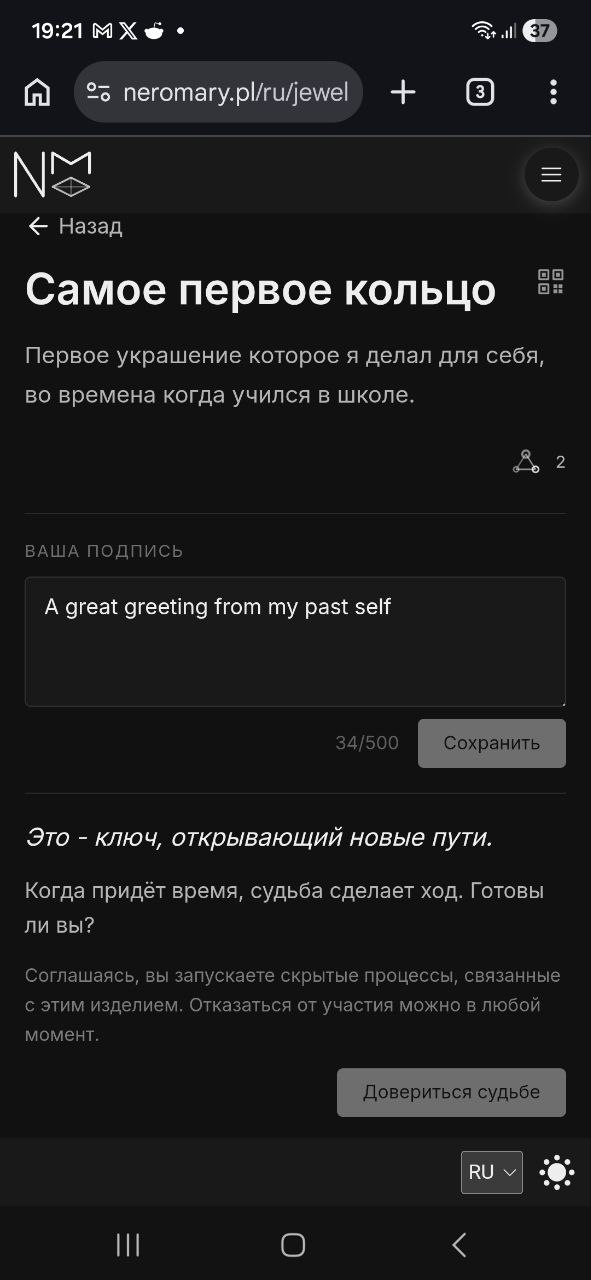
- Your piece's page opens. As the owner, you'll see an invitation: "This is a key that opens new paths."
- Tap "Trust your fate" — this is your consent for the piece to take part in the performance.
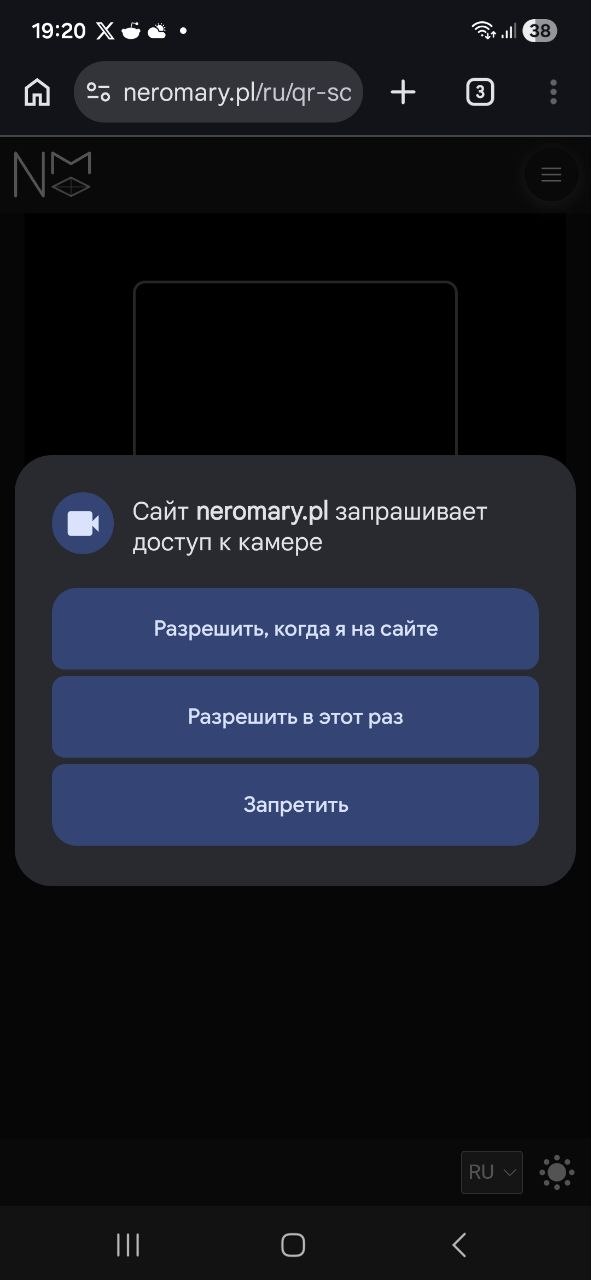
When you open the QR Scanner, Chrome asks once for camera access — it's only needed to read the piece's QR code. If you decline, the scanner can't read the code; you can grant the permission later in the site settings (see "Which permissions, and how to manage them" below).
Right after you consent, the app asks once for notification permission — so it can send your piece's events and put a badge on the icon. It's the usual system prompt: you can allow or decline. Your answer doesn't affect taking part in the performance — if you decline, you simply won't get push notifications.
You can withdraw consent at any time (see "Notifications and subscriptions" below). Once you've joined, a short participation note appears on the piece's page, and your private Keys of Fate event feed becomes available.
How and why to install the app (PWA)
You can install the site on Android like a regular app — this is called a PWA (Progressive Web App). No app store is needed.
Why install it:
- the app gets its own icon on your home screen;
- the icon shows a badge when a new event arrives;
- event notifications work even when the site is closed.
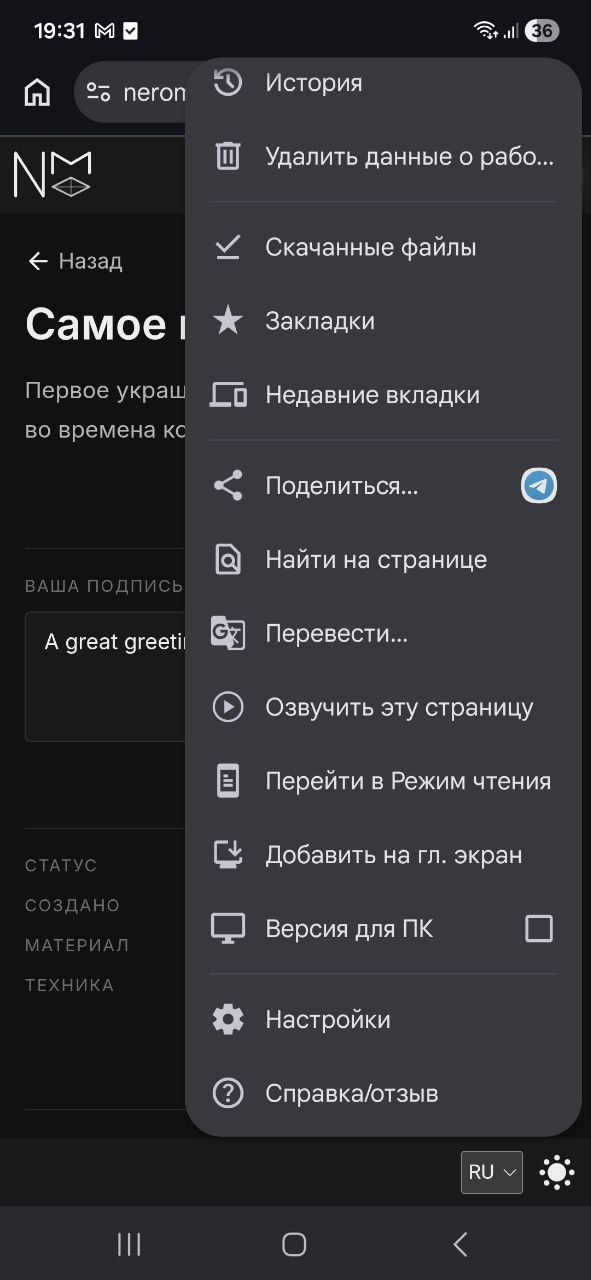
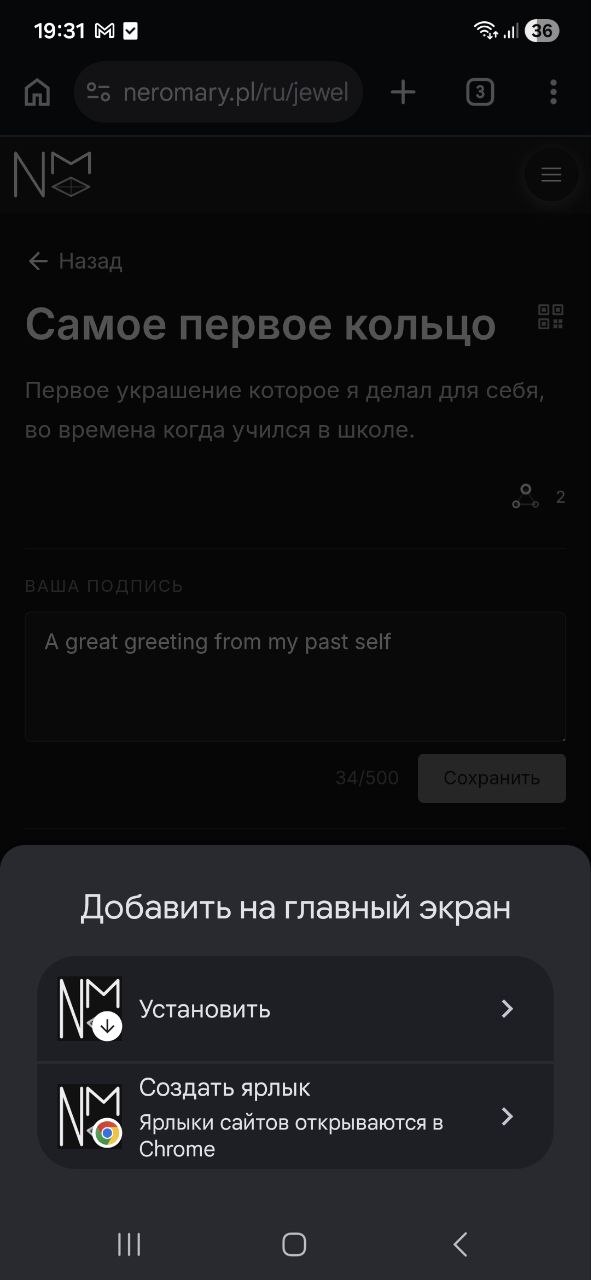
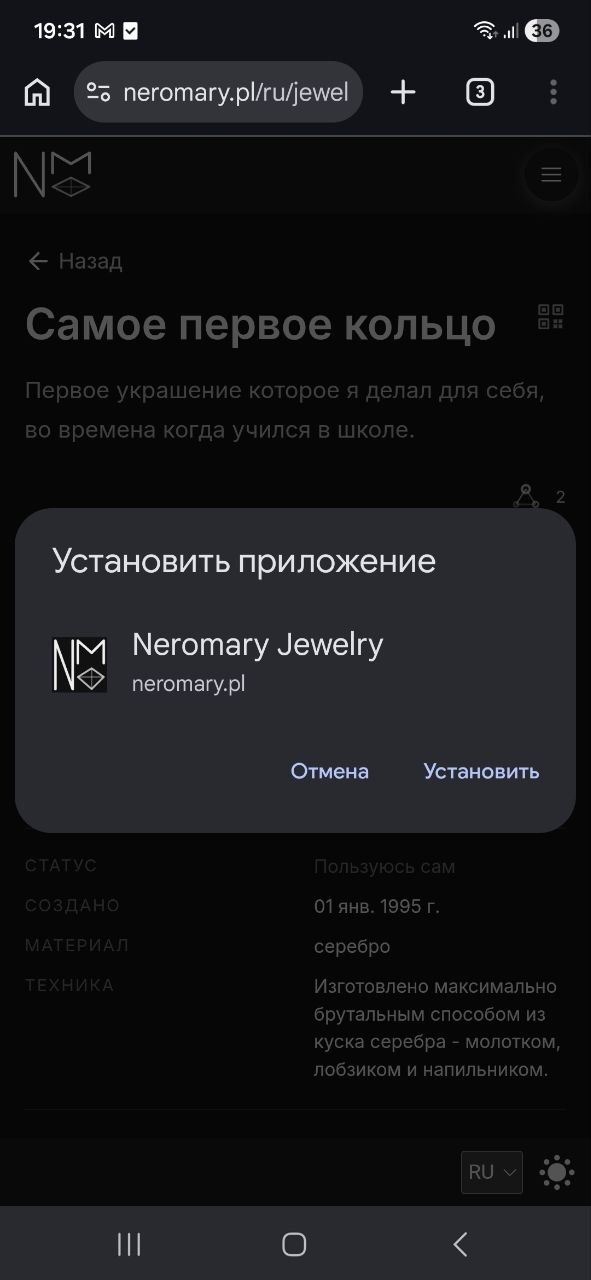
Open the site in Chrome → menu (⋮) → "Install and create shortcut" → "Install" → in the "Install app" dialog tap "Install".
Which permissions, and how to manage them
The app requests permissions only when they're actually needed, and always explains what for.
- Notifications — to send a message and put a badge on the icon when a new event appears in your Keys of Fate. Requested when you turn notifications on, or right when you tap "Trust your fate".
- Camera — only for the QR Scanner, to read a piece's code. Requested when you open the scanner.
If you decline a permission, nothing breaks: you simply won't receive push notifications (for the camera — the scanner won't work).
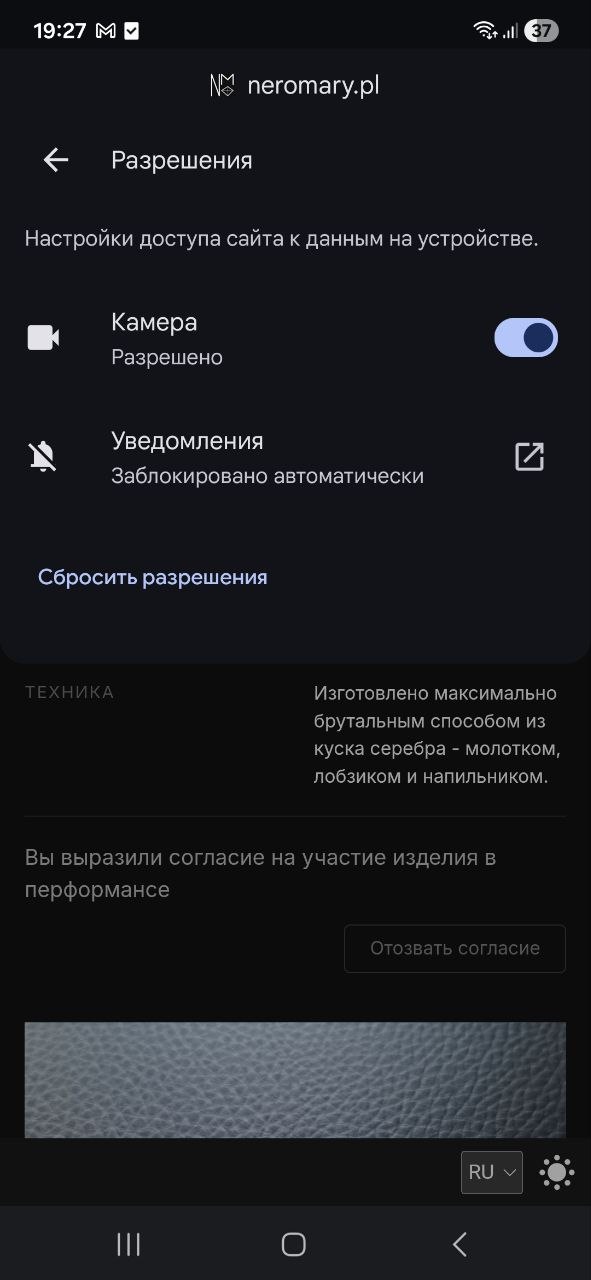
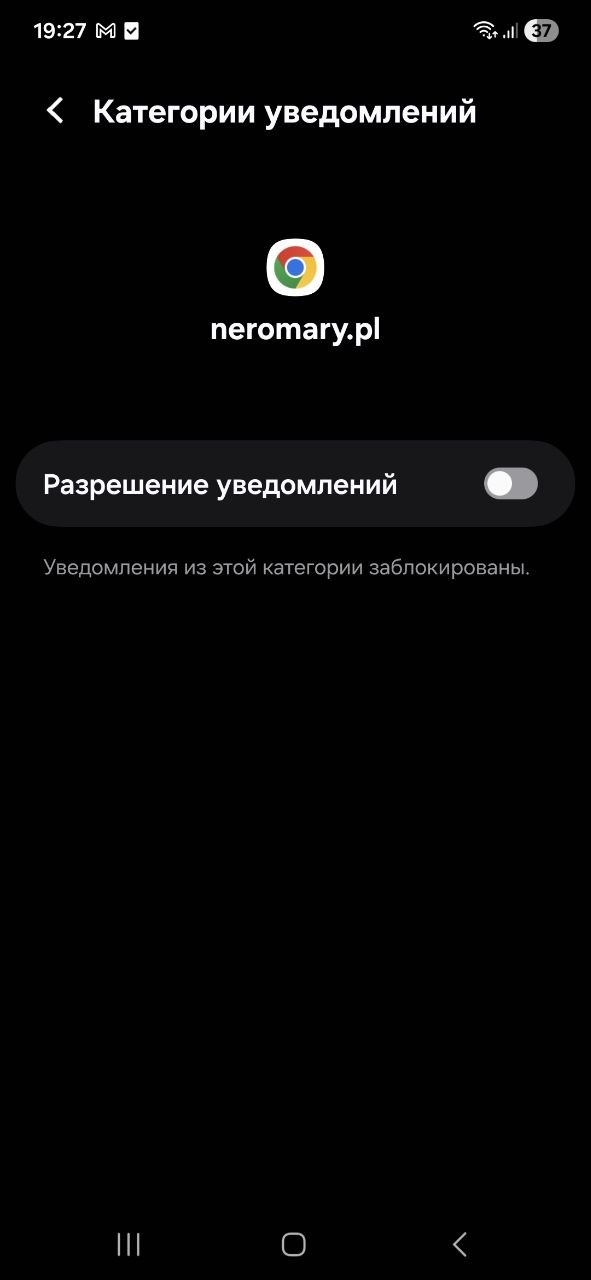
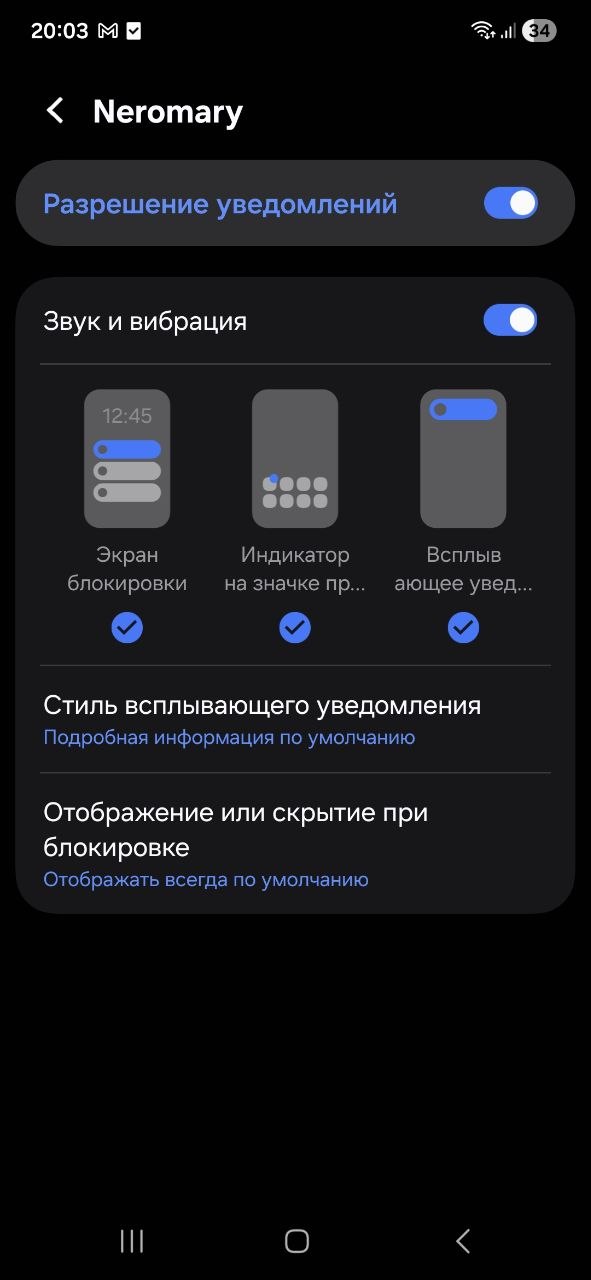
You can grant or reset the camera and notification permissions in the site settings in Chrome, and for the installed app — in the Android system settings.
Notifications and subscriptions
There are three independent channels. Each can be turned on or off on its own.
Taking part in the performance
- Subscribe: the "Trust your fate" button on the piece's page.
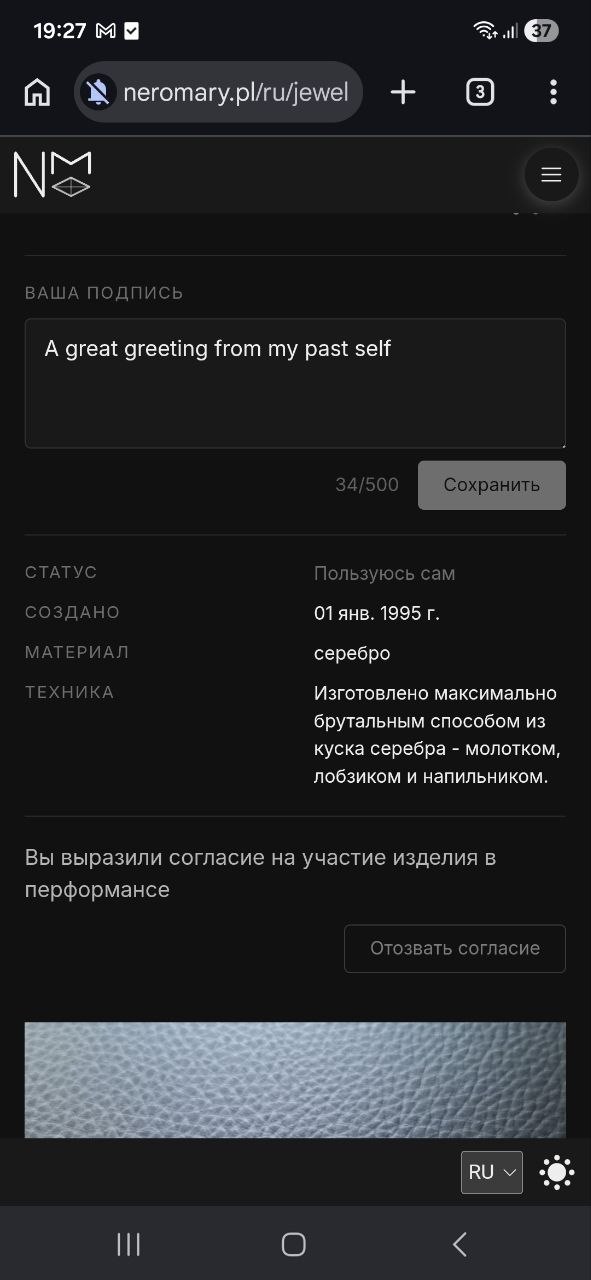
- Unsubscribe: the "Withdraw consent" button on the piece's page.
Withdrawing consent is your deliberate action; the participation record is removed and its push subscriptions are switched off.
In-app notifications (push)
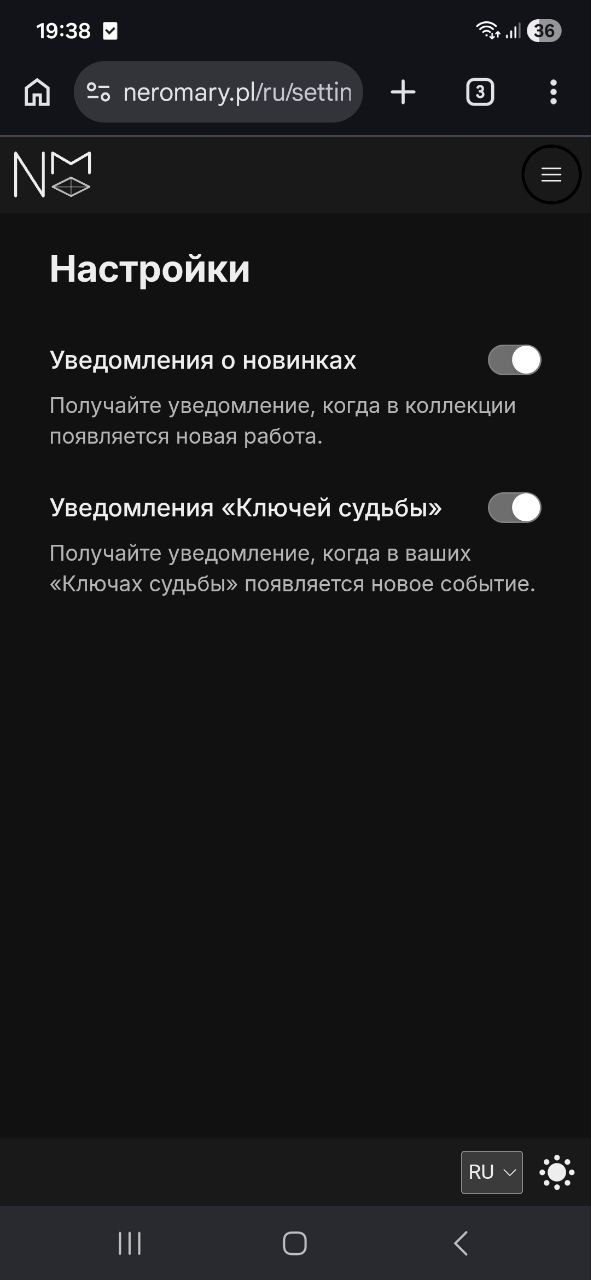
- Subscribe: turned on automatically when you tap "Trust your fate". There is also a "Keys of Fate notifications" toggle on the Settings page.
- Unsubscribe: turn the same toggle off in Settings.
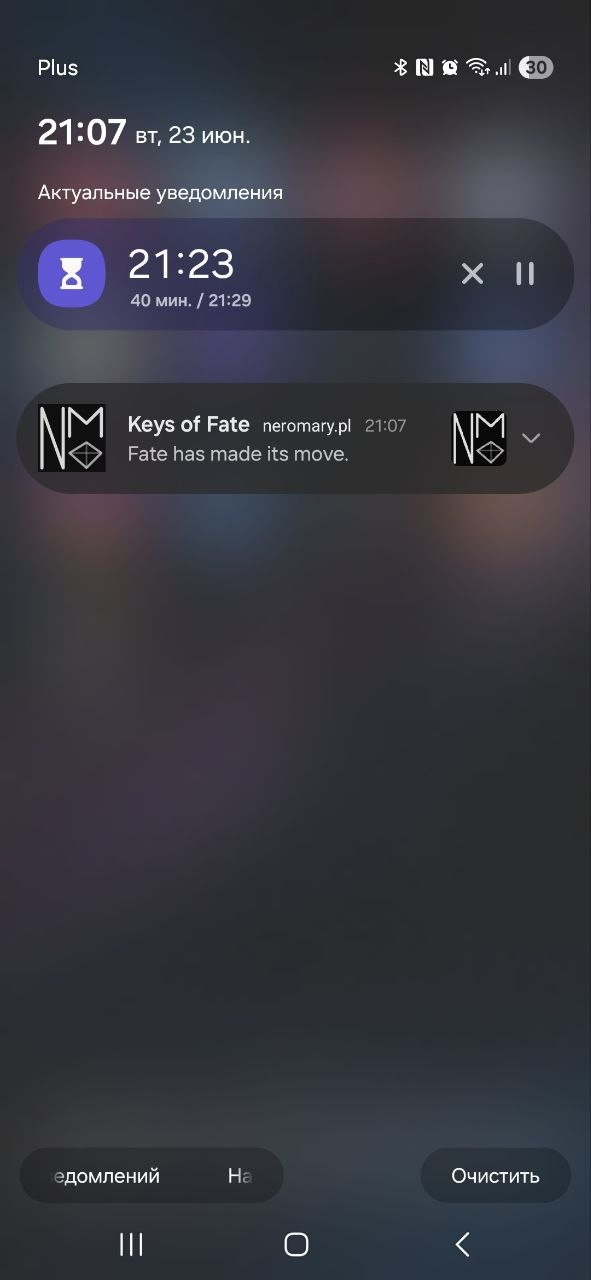
On Android, push notifications arrive both in the browser and in the installed app — installing the PWA is optional, but more convenient (its own icon and badge). If notifications aren't available, the toggle is disabled with a hint.
How to pass a piece on to a new owner
A piece can be handed to a new owner. To do this, contact me (the author) to get a new QR code for the new owner.
What happens on transfer:
- the previous QR code stops working and your consent is closed automatically — no orphaned records are left behind;
- the new owner gets a clean slate: after scanning their own QR code, they decide for themselves whether to join the performance.
How to tell there's a new event
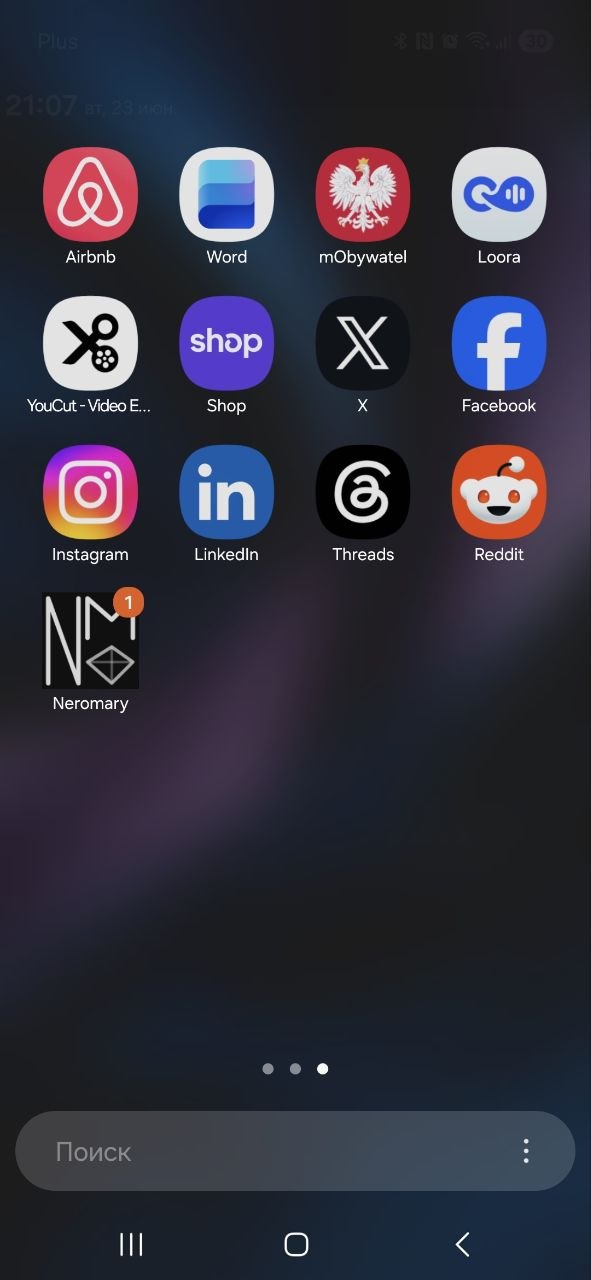
When a new event related to your piece appears, it's signalled by a badge (a dot or marker):
- on the icon of the installed app on your phone;
- on the menu button and on the "Keys of Fate" menu item;
- on the piece's card a new-event note appears — an invitation to open the Keys of Fate feed.
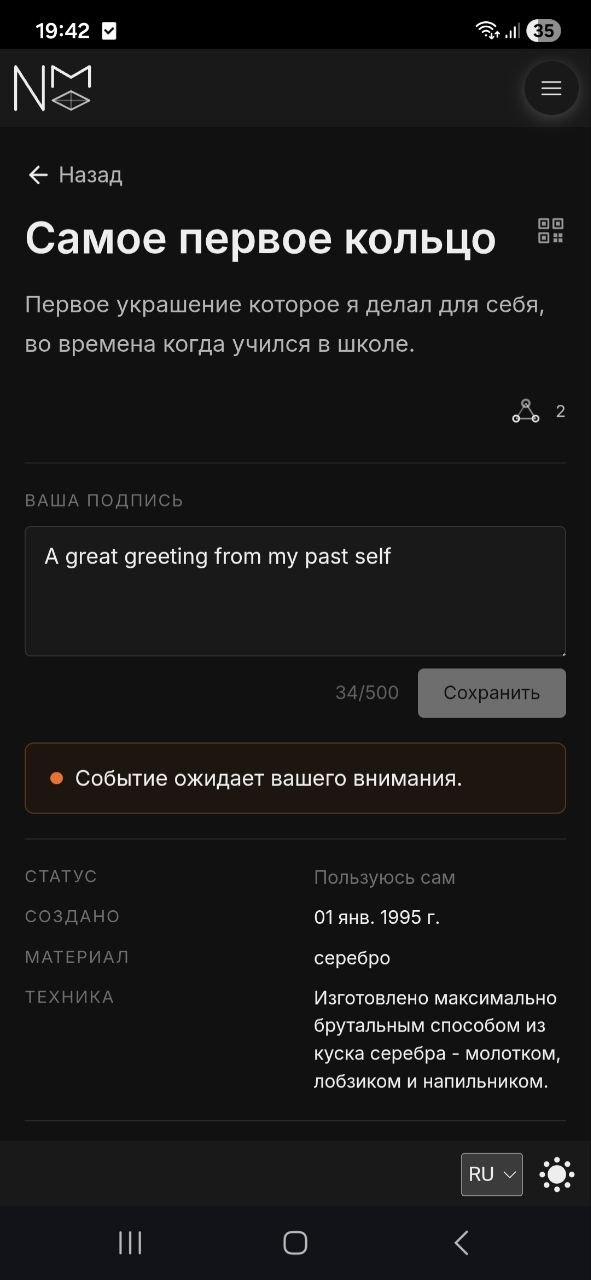
When you open the Keys of Fate page and view the event, the note clears and the badge goes away.